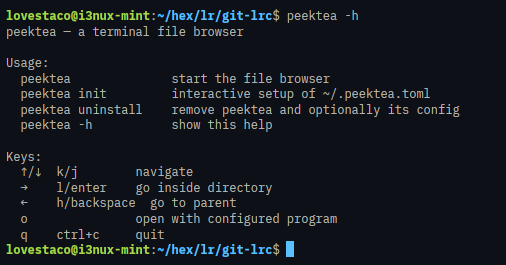
Configuration for Linux/macOS
Setup with peektea init
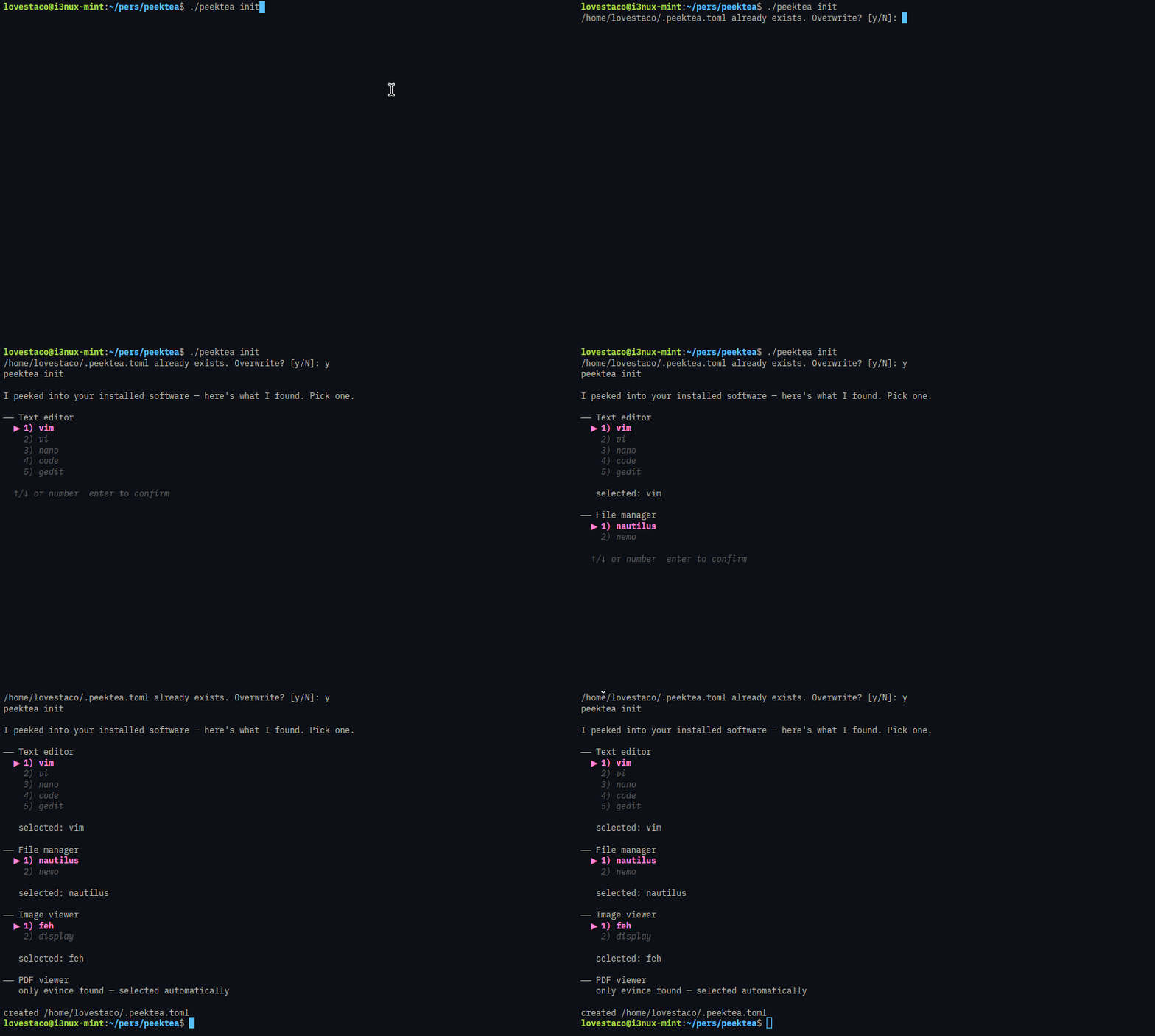
Run peektea init to configure which apps open each file type:
It peeks into your installed software and lets you pick your blend. If there's only one option for a category, it selects it automatically. If chafa isn't installed for image previews, init offers to install it on the spot using your system's package manager — no copy-pasting commands needed.
Declining the "already exists, overwrite?" prompt keeps your existing config and continues to the chafa check, so you can re-run peektea init just to install extras without touching your config.
On WSL
peektea init skips the Linux GUI app categories and sets the Windows opener as the fallback instead. See WSL support.
The config file
init writes ~/.peektea.toml, but you can steep it by hand. Each key is derived straight from the file extension — dots become underscores, wrapped with _ and _config:
file.md        → _md_config
archive.tar.gz → _tar_gz_config
hello.xd.dd    → _xd_dd_config
directory      → _dir_config
Example, brewed to taste:
_md_config      = "vim"
_png_config     = "feh"
_dir_config     = "nautilus"
_default_config = "less"

terminal_programs = ["vim", "nvim", "nano", "micro", "hx"]
Fallback order when opening a file
The bag never comes up empty:
- The matching
_<ext>_configkey _default_configfor unknown extensionsvimif nothing is configured at all
terminal_programs
Tells peektea which programs need the full terminal. Anything in this set (vim, nvim, etc.) takes over the screen while open — the whole table, not just a saucer. Everything else (GUI apps like nautilus or feh) launches in the background and keeps the browser brewing.
Help
Consider it the menu before you order: