Voices
EarsUp has two voice engines. Choose one in Voices → Voice engine.
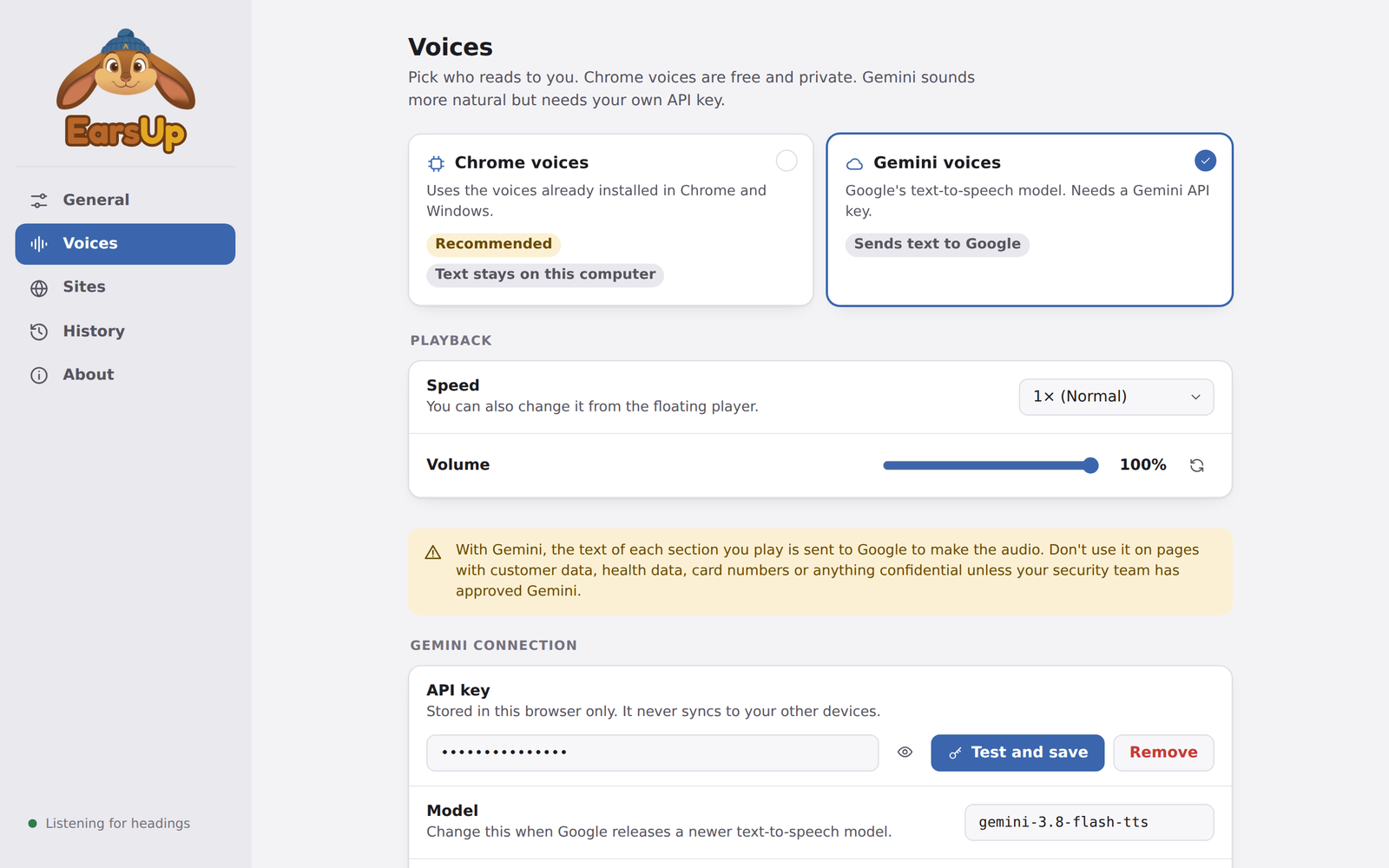
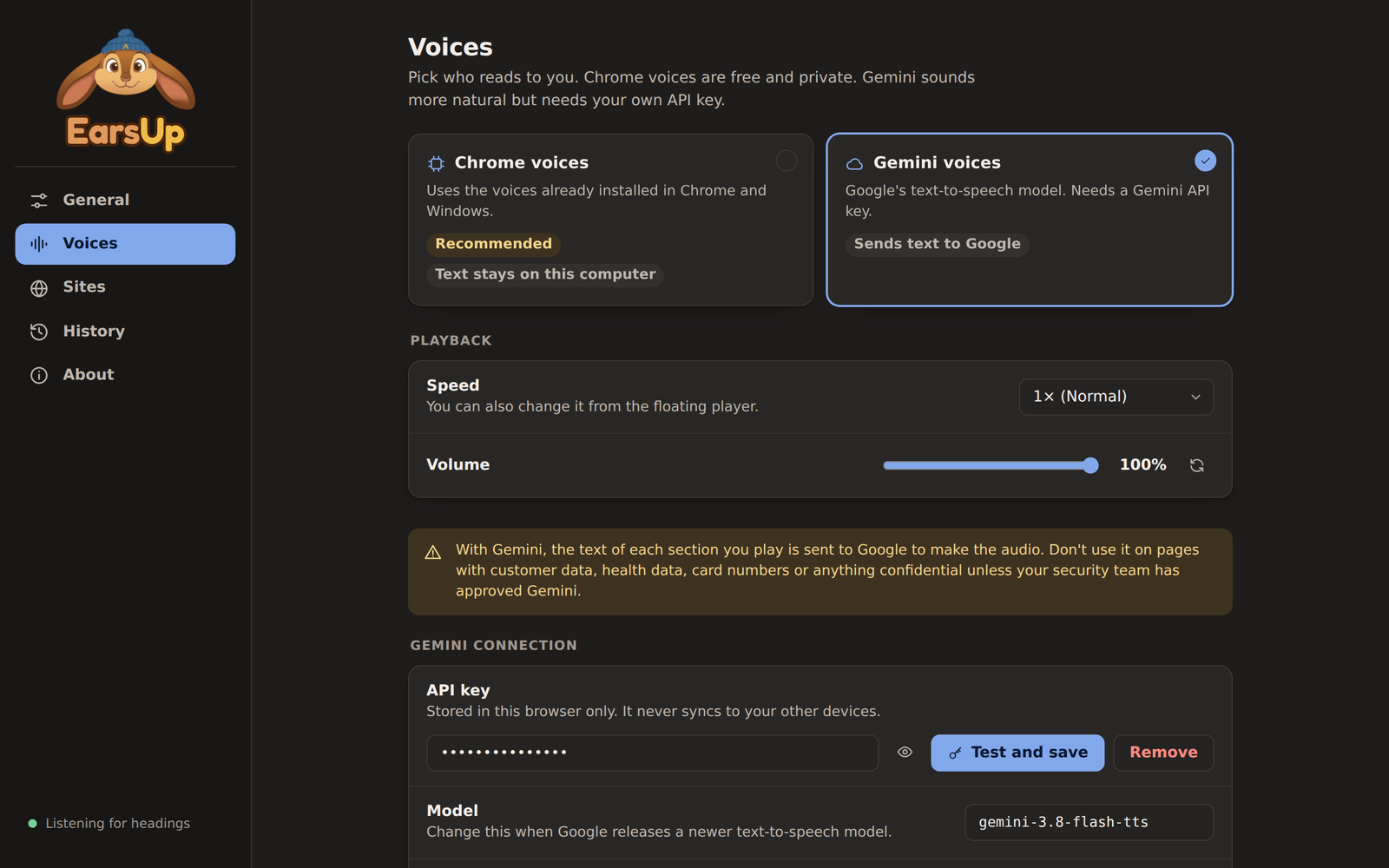
Chrome voices (default)
Chrome voices are already on your computer. They work offline, and EarsUp sends nothing anywhere.
- Search by name and filter by language.
- Press the small play button on a voice card to hear a preview.
- Click the card to choose it.
Which voices you see depends on your operating system and Chrome. On Windows you get the Windows voices plus Google's online voices.
Gemini voices (optional)
Gemini voices come from Google's Gemini text-to-speech. They sound more natural, and you can describe how they should read.
The text leaves your computer
With Gemini, the text of each section you play is sent to Google's Gemini API with your key. Do not use Gemini on confidential, customer, health, or payment data unless your organisation allows it. Chrome voices send nothing.
To set it up:
- Get an API key from Google AI Studio.
- In Voices, choose Gemini voices.
- Paste the key in Gemini connection → API key. EarsUp tests it before saving.
- Choose one of the 30 voices. Each card shows its tone, for example "Firm" or "Breezy".
| Setting | What it does |
|---|---|
| API key | Stored in this browser only. It never syncs to your other devices. |
| Model | The Gemini text-to-speech model. Change it when Google releases a newer one. |
| Reading style | Optional. Describe the delivery, for example "calm and clear, like a narrator". |
| Voice | One of Gemini's 30 voices. |
Gemini usage counts against your own Google AI quota and billing. EarsUp fetches the next part while the current one plays, so there is less waiting between parts.
Playback
These apply to both engines, in Voices → Playback.
| Setting | Range | Default |
|---|---|---|
| Speed | 0.5× to 2.5× | 1× |
| Pitch | 0.5× to 1.5× | 1× |
| Volume | 10% to 100% | 100% |
Each slider has a reset button. Speed is also on the floating player.